Storage
How Long Do Security Cameras Keep Footage?
False motion can shorten retention by creating unnecessary recordings.
Read guide
Motion Detection
Use sensitivity, masking, better camera placement, and realistic testing to reduce alerts caused by light, weather, reflections, pets, screens, and background movement.
Motion detection is useful only when an alert means something. If every cloud, tree branch, reflection, passing headlight, or television image creates an event, users eventually stop paying attention. The goal is not maximum sensitivity; it is reliable detection of the movement you care about.
Security Eye provides two important tools for this job: a motion sensitivity setting and a masking area. They work best when combined with sensible camera placement and testing under the actual daytime and nighttime conditions of the scene.
Do not immediately lower sensitivity. First review several false events and look for a pattern. Common causes include:
Once you know the source, you can decide whether to change sensitivity, mask that part of the picture, or physically improve the camera view.
Open the camera settings and go to the Detection tab. Security Eye's manual recommends adjusting the sensitivity, saving the setting, starting monitoring, and then testing how the detector reacts when a person moves through the scene.
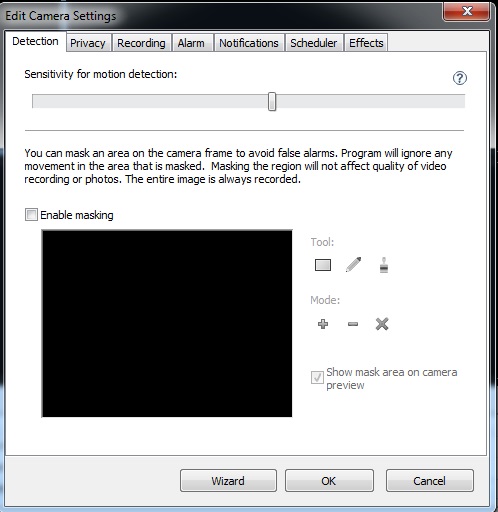
Test at least two kinds of movement:
Change the sensitivity in small steps. A setting that is too sensitive creates noise; one that is too insensitive can miss real events. There is no universal best value because the correct setting depends on camera position, resolution, lighting, distance, and the amount of normal movement in the frame.
Masking is often more effective than reducing sensitivity for the entire image. Security Eye can ignore movement inside masked parts of the camera frame while continuing to record the full image. That means you can exclude a problem region from motion detection without cropping it out of the recorded video.
Good candidates for masking include:
Do not mask so much of the frame that an intruder can cross the important area without entering an active detection zone. The best mask usually removes a specific nuisance rather than most of the image.
Sometimes the correct fix is physical. A camera aimed directly at a bright window will always have more dramatic light changes than a camera placed at an angle to that window. An outdoor camera pointed through branches will always see motion during wind.
Try these placement improvements:
A scene that behaves perfectly at noon can behave very differently after sunset. Streetlights switch on, car headlights sweep across walls, infrared illumination changes the image, and indoor lights may be controlled by timers or occupants.
Test motion detection during the periods when monitoring will actually run. For a business that monitors only after closing, daytime testing alone is not enough. For a home entrance, test both bright daylight and darkness.
Not every camera needs to use motion as the only reason to record. In some locations, scheduled recording may be more reliable because activity is frequent or the scene changes constantly. In other locations, motion-triggered recording can reduce storage use dramatically.
Security Eye can record when motion is detected and continue recording for a configurable period after the last detected movement. That continuation period helps prevent a single event from being split into many tiny clips when a person pauses briefly.
If a camera produces constant motion events because the environment is inherently busy, consider whether scheduled recording plus selective notifications is a better operational design than trying to eliminate every motion trigger.
For the original Security Eye instructions, see the Configure Detection section of the User Guide.
Security Eye is video surveillance software for Windows with IP camera and webcam monitoring, recording, motion detection, scheduling, notifications, and remote web access.